
5 Ways to Connect Siloed Golf Club Data
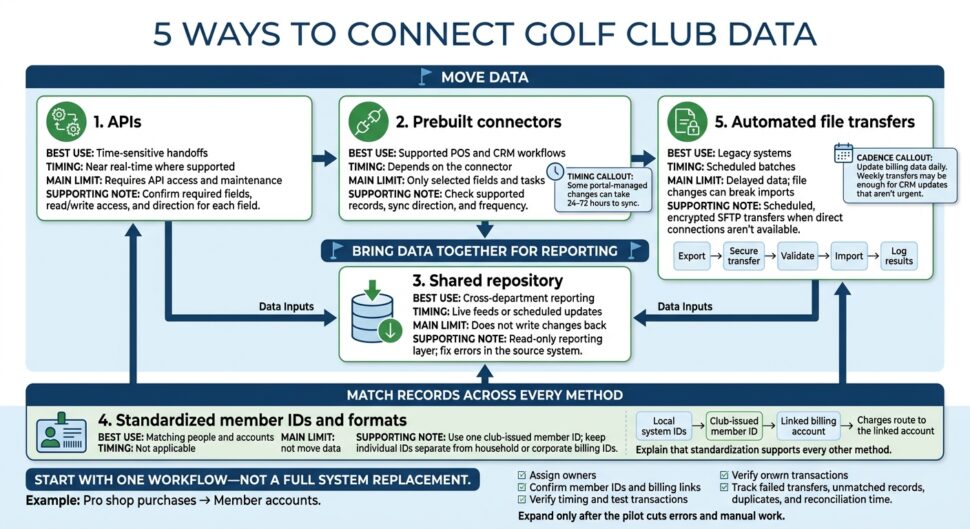
We’d start with one workflow – not a full system replacement. Pick a task that makes staff enter the same data twice, such as posting pro shop purchases to member accounts. This is especially useful for coordinating on-demand delivery app for golf clubs orders with existing billing systems. Assign a data owner and confirm member IDs and billing links before testing it.
Here are the five approaches to consider:
- APIs: Move data directly between systems when the required fields and write access are available.
- Prebuilt connectors: Cut setup work, but check which records they support and how often they sync.
- Shared repository: Bring records together for read-only reporting, not for changing bookings or charges.
- Standardized member IDs and formats: Match activity to the right person and billing account. This does not transfer data.
- Automated file transfers: Use scheduled, encrypted transfers when direct connections aren’t available.
Quick Comparison
| Approach | Best use | Timing | Main limit |
|---|---|---|---|
| APIs | Time-sensitive handoffs | Near real-time where supported | Requires API access and maintenance |
| Prebuilt connectors | Supported POS and CRM workflows | Depends on the connector | Only selected fields and tasks |
| Shared repository | Cross-department reporting | Live feeds or scheduled updates | Does not write changes back |
| Standardized IDs | Matching people and accounts | Not applicable | Does not move data |
| Automated transfers | Legacy systems | Scheduled batches | Delayed data; file changes can break imports |
We’d <u>verify timing before staff rely on a connection</u>: some portal-managed changes can take 24–72 hours to sync. Then track failed transfers, unmatched records, and reconciliation time – and expand only after the pilot reduces errors and manual work.
Identify Systems, Data Owners, and Member Records
Create one inventory for your tee sheet, membership CRM, food and beverage POS, and pro shop system. For each system, record its APIs, connectors, exports, permissions, and owner. Check which fields each connection can read and write – not just whether it exists. Use this inventory to choose the first workflow to connect.
Give shared fields one source of truth. The membership CRM owns member status and contact details, the tee sheet owns reservations, and the POS or billing system owns financial records. Document who can edit each field and where those updates sync.
Keep members, dependents, guests, and household billing accounts separate, then link them so charges reach the right account. Define these relationships before moving transactions between systems.
Start with one workflow, such as tee sheet bookings feeding F&B orders.
Map only the fields staff need, and limit access to those fields. In the admin portals, set who manages menu updates, business hours, and order visibility.
Before go-live, define update timing and validation rules. Decide which changes sync immediately and which wait for the next transfer cycle. Require valid member IDs and billing links, flag duplicates, and review unmatched charges before posting.
Test member, dependent, and guest transactions before turning on automatic posting. Assign one owner to monitor failed transfers and prevent broken handoffs between departments. Use the workflow map to decide whether APIs, connectors, or transfer automation fit best.
1. Connect Systems Through APIs
Best-Fit Workflows and System Requirements
Use APIs when both systems expose the fields you need, so staff don’t have to enter the same record twice. APIs move tee sheet, POS, and CRM data without manual reentry, helping departments use the same member record. Check that each API endpoint can read or write the required fields, including house account links, and confirm access credentials.
Update Timing and Direction
Choose the direction for each field: one-way for simple handoffs, or two-way when staff need to edit the same record in multiple systems. Request near real-time transfers for time-sensitive workflows. Then verify the actual delay – system limits control how soon updates arrive.
Setup and Maintenance
Have the integration team set up authentication, map API fields, and verify write access. Test a dining charge before expanding access.
Benefits and Limits
APIs cut duplicate entry, but each system supports different fields and actions. If a direct API isn’t available, the next option is a prebuilt connector.
2. Use Prebuilt Connectors
Best-Fit Workflows and System Requirements
If a custom API build is too slow or too limited, a prebuilt connector may be a better fit. Use one when your tee sheet, membership CRM, food and beverage POS, and pro shop systems support it – and you need a faster setup with less work than a custom integration.
Check whether your current plan includes the connector or requires an upgrade. Ask for the supported-field list, then confirm the exact workflow and shared member fields. Knowing that two systems can connect isn’t enough.
A connector may move only selected fields, such as tee sheet activity.
Update Timing and Direction
Ask which records sync in each direction and how often. Some workflows update immediately, while portal-managed changes can take 24 to 72 hours to sync. Staff need to know that timing before relying on the data at the counter, in the dining room, or at retail.
Setup and Maintenance
Assign one owner to handle permissions, configuration, support requests, and exceptions.
Benefits and Limits
Connectors reduce duplicate entry only for tasks they support. Track whether manual admin work is decreasing and cleaner member data is being collected automatically to optimize your golf course operations.
Keep a separate process for unsupported order types, such as buffets.
When multiple departments need the same records, keep shared fields in one central repository.
3. Bring Data Into a Shared Repository
Best-Fit Workflows and System Requirements
When direct integrations don’t cover every workflow, bring copies of key records into a read-only reporting layer. A controlled warehouse or shared database gives staff one view of golf, dining, and retail activity across the club or multiple properties.
Include tee-sheet reservations, no-shows, CRM profiles, dining transactions, and pro shop purchases so staff can review activity before the next member interaction. This setup suits clubs with multiple revenue streams, especially when family or corporate accounts need to stay linked.
Update Timing and Direction
Match update timing to the task: use real-time feeds for live monitoring where supported and scheduled updates for reporting. Keep the repository read-only for reporting. It isn’t the source of truth for tee times, billing, or inventory.
Setup and Maintenance
Assign an owner for the repository and data owners in each department. Define who can view and edit data, then check that reservations, no-shows, and purchases connect to the correct member ID.
Benefits and Limits
Shared data helps staff spot booking peaks, ordering patterns, and member value. Fix errors in the source system, then update the repository. Bringing data together does not, by itself, write changes back to those systems.
For this setup to work cleanly, every system needs to use the same member IDs and field names.
4. Standardize Member IDs and Data Formats
Best-Fit Workflows and System Requirements
Use one club-issued member ID to connect tee-sheet bookings, CRM profiles, food and beverage charges, and pro shop purchases. Keep each person’s ID separate from household or corporate billing IDs. Activity belongs to the individual; charges can roll up to a shared account. Use a mapping table to link each system’s local ID to the club-issued ID.
Setup and Maintenance
Set consistent formats for contact details, membership status codes, transaction categories, and dates. Then map the labels in your tee sheet, CRM, dining, and pro shop systems to those standards.
Set duplicate-match thresholds before merging duplicate records across these systems. Accept verified ID mappings, but send missing IDs, conflicts, and uncertain matches to a staff review queue. A shared email address or matching name alone doesn’t prove that two records belong to the same person.
Benefits and Limits
Consistent IDs help departments identify the right member, keep individual preferences intact, and route charges to the correct account. But standardization does not move data. It makes records easier to match and use through APIs, prebuilt connectors, shared repositories, and automated transfers.
When direct integrations aren’t available, these standards also make automated transfers easier.
5. Automate Transfers Without Direct Integrations
When APIs or connectors aren’t available, scheduled transfers can keep member records moving between systems.
Best-Fit Workflows and System Requirements
Use scheduled exports when legacy tee sheet, POS, or pro shop systems can’t connect directly. Check that each source system can export the member fields you need and that the CRM accepts CSV imports.
Transfer files through encrypted SFTP, and use least-privilege access so each account can reach only the files it needs.
Update Timing and Direction
Update billing data daily. Weekly transfers may be enough for CRM updates that aren’t urgent. Schedule transfers during off-peak hours.
One-way imports give the CRM a delayed view of source activity – not a live sync. Make sure staff know that CRM edits won’t flow back to the source system.
Setup and Maintenance
Follow this sequence: export, secure transfer, validate, map IDs, import, log results. Before importing, check required fields and record counts. Keep member IDs and field names consistent.
Set up failure alerts and block duplicates before retrying failed transfers. The integration owner should update mappings whenever file layouts change.
Benefits and Limits
Scheduled transfers reduce duplicate entry and help keep member records consistent. Before staff rely on the CRM, compare source and import record counts and review any missing or rejected records.
For legacy systems, scheduled transfers can serve as a starting point, with a move to stronger integrations as your stack allows.
Choose the Right Mix for Your Club
Use the system map from the previous section to assign each workflow to the simplest method that meets its needs.
Choose by workflow rather than applying one method across the club. Reservations need fast updates; reporting can run in batches. Before staff rely on a connection, confirm what each system can send and how often it updates.
Your mix depends on how quickly data needs to move and whether the workflow must write back to source systems.
| Approach | Best fit | Update timing | Setup effort | Best value | Main limit |
|---|---|---|---|---|---|
| APIs | Tee-time reservations and tee sheets | Real-time or event-driven | High | Live data sync between systems | Requires API access and maintenance |
| Prebuilt connectors | F&B and pro shop POS flows | Near real-time | Low to medium | Fast deployment | Limited to supported systems and fields |
| Shared repository | Cross-department reporting | Scheduled or batch | Medium to high | One source of truth for reporting | Data is not live for day-to-day work |
| ID standardization | Prerequisite for all data matching | N/A | Medium | Enables record merging across systems | Does not move data |
| Automated transfers | Legacy systems without modern APIs | Scheduled | Medium | Connects systems without direct integrations | Can break if file formats change |
Use standardized member IDs with every method so records match the right person. This is a prerequisite for matching data, not a way to transfer it.
Most clubs need a mix: APIs for tee times, connectors for POS flows, a shared repository for reporting, and scheduled transfers for legacy systems.
This mix keeps tee sheets, CRM records, POS activity, and pro shop purchases aligned without making every system work the same way.
Club staff remain responsible for record accuracy and monitoring failed transfers.
Conclusion: Start With One Workflow, Then Expand
APIs, connectors, and automated transfers move data. Standardized IDs link it to the right member, while a shared repository gives staff one place to review it. Once you’ve defined that mix, test one workflow before expanding.
Start with the workflow that requires the most manual reentry.
For example, sync pro shop purchases to member accounts.
Before launch, assign owners, define source-of-truth fields, and set matching rules. Specify who handles exceptions and reconciles totals. Use the POS as the source of truth for financial transactions and inventory.
Track unmatched records, duplicates, reconciliation time, and failed transfers both before and during the pilot. Once it’s live, check whether it reduces manual work. Look for accurate member matching, fewer exceptions, and less manual reentry. Confirm that records reconcile correctly and every exception has a clear owner.
Expand only after the pilot cuts errors and manual work.
FAQs
How much should our club budget for data integration?
Review your club’s current operating expenses to see what you can afford without stretching your finances. Budget for both the initial setup and maintenance over time.
Instead of starting with a fixed dollar amount, focus on the features your club needs, such as tee time scheduling, inventory management, or member communication. Then assess how integration could help your team work more efficiently and bring in more revenue to justify the investment.
How can we prevent duplicate charges during sync failures?
Use reliable APIs and established software connectors that support real-time data validation. Store data in a shared repository, and use consistent member IDs and data formats across tee sheets, membership CRM, and point-of-sale systems. This lets you identify and track each transaction separately.
When direct integrations aren’t available, use reliable middleware to automate data transfers. This keeps data consistent and reduces manual entry errors that can lead to duplicate charges.
How do we protect member data across connected systems?
Choose platforms with secure integrations, including established APIs and prebuilt software connectors that keep data intact during transfers. Store member records in a secure, shared repository to reduce the risks of duplicate entries and data scattered across systems.
Use consistent member IDs and data formats across tee sheet, CRM, and point-of-sale systems. This helps maintain consistent security protocols, give staff the right access, and keep tight control over sensitive data.
